



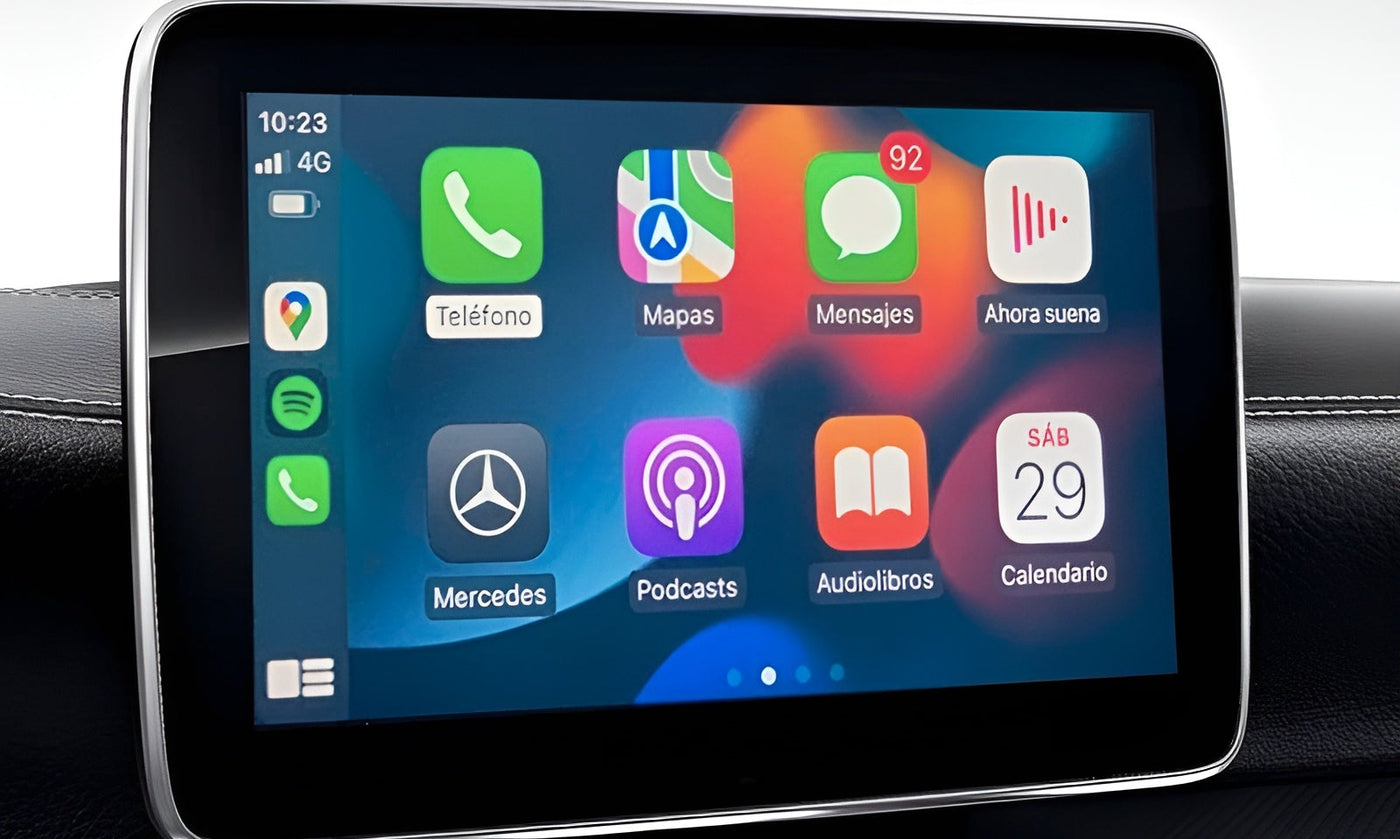

Apple CarPlay mirrors key iPhone functions directly onto your car’s infotainment screen.
When configured correctly, CarPlay connects automatically every time you enter your vehicle.
What You Need Before You Start
To use Apple CarPlay, make sure the following requirements are met:
- An iPhone running iOS 7.1 or newer
- A vehicle or head unit that supports Apple CarPlay
- An Apple-certified Lightning or USB-C cable
- Siri enabled on your iPhone
Step 1 – Enable Siri on Your iPhone
CarPlay cannot function without Siri.
Open:
Settings → Siri & Search
Enable:
- Listen for “Hey Siri”
- Press Side Button for Siri
- Allow Siri When Locked
If asked, complete the Siri voice recognition setup.
Step 2 – Enable CarPlay on Your iPhone
Open:
Settings → General → CarPlay
This is where your car will appear once connected.
Step 3 – Connect the iPhone to Your Vehicle
Start your vehicle and plug your iPhone into the USB port marked with the CarPlay or smartphone icon. Always use the main USB port — secondary charging ports often do not support CarPlay.
After a few seconds, your car screen should display the CarPlay interface.
Step 4 – Allow CarPlay While Locked
Your iPhone will display a message asking if CarPlay can be used while the phone is locked.
Tap Allow.
If you do not enable this, CarPlay will disconnect as soon as the phone locks.
Step 5 – Confirm Vehicle System Settings
Some vehicles require CarPlay to be enabled manually in the infotainment menu.
Look for settings such as:
Phone Projection, Smartphone Integration or Apple CarPlay and ensure it is activated.
Step 6 – Use CarPlay Correctly
Once active, CarPlay can be controlled using:
- Your vehicle’s touchscreen
- The steering wheel voice button
- Saying “Hey Siri”
You now have access to Apple Maps, Google Maps, Waze, Messages, Phone, Spotify and all compatible CarPlay apps.
Common Problems and Fixes
CarPlay does not appear at all
Try a different USB cable and ensure Siri is enabled.
Car connects once but never again
Go to Settings → General → CarPlay, remove your vehicle and reconnect from scratch.
CarPlay disconnects randomly
Disable Low Power Mode and Background App Restrictions.
CarPlay works only when unlocked
Check Settings → Siri & Search → Allow Siri When Locked.
Final Tip
Once properly configured, Apple CarPlay should start automatically every time you connect your iPhone. No manual pairing should be required again.
A correct setup delivers a faster, safer and far more enjoyable driving experience.