



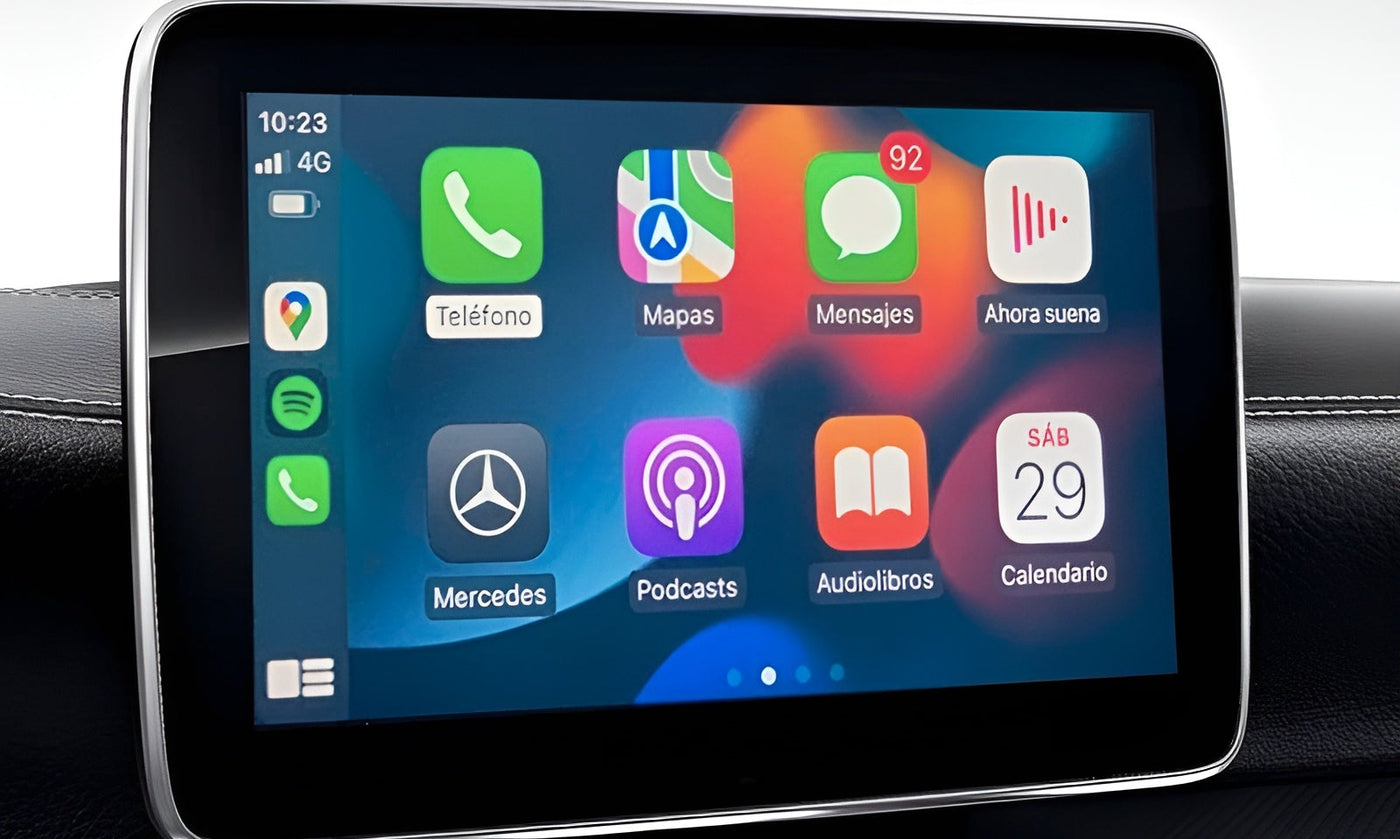

Apple CarPlay becomes significantly more powerful when Siri is correctly configured.
Voice control allows you to send messages, start navigation, play music, and manage calls without ever taking your hands off the steering wheel.
In this guide, we explain how to properly enable Siri for CarPlay in a clear, step-by-step manner.
Why Siri Is Essential for Apple CarPlay
Siri is not just a convenience feature — it is a core safety component of CarPlay. When Siri is active, you can:
- Launch navigation using voice commands.
- Dictate messages instead of typing.
- Control music and podcasts hands-free.
- Make and receive calls without distraction.
If Siri is disabled or partially configured, CarPlay will feel incomplete or may not work at all.
Step 1 – Enable Siri on Your iPhone
Start by activating Siri on the iPhone itself.
Go to:
Settings → Siri & Search
Enable the following options:
- Listen for “Hey Siri”
- Press Side Button for Siri
- Allow Siri When Locked
If prompted, complete the voice recognition process so your iPhone can correctly detect your voice.
Step 2 – Activate Siri for Apple CarPlay
Now link Siri to your vehicle.
Navigate to:
Settings → General → CarPlay → Select your vehicle
Enable:
- Allow Siri
- Allow While Locked (strongly recommended)
If your car is not listed, connect your iPhone to the vehicle using the USB cable or Bluetooth, then return to this menu.
Step 3 – Verify Screen Time and Restrictions
Sometimes Siri is blocked by iOS restrictions.
Go to:
Settings → Screen Time → Content & Privacy Restrictions → Allowed Apps
Ensure the following is enabled:
- Siri & Dictation
Then verify:
Settings → Screen Time → Content Restrictions → Siri
Allow all necessary permissions for web content and explicit language if required.
Step 4 – Use Siri Inside Your Car
Once everything is configured, Siri can be launched using:
- The voice button on your steering wheel (press and hold).
- Saying “Hey Siri” if your vehicle supports it.
- Pressing and holding the CarPlay home button on the screen.
Try a simple command such as:
“Hey Siri, take me home” or “Hey Siri, play my driving playlist”.
Step 5 – Troubleshooting Common Problems
| Problem | Solution |
|---|---|
| Siri button does nothing | Re-enable Siri in both iPhone and CarPlay settings |
| “Hey Siri” not detected | Check microphone access and ensure “Listen for Hey Siri” is active |
| Vehicle not listed in CarPlay | Remove the car from CarPlay settings and reconnect |
| Siri works on phone but not in car | Verify “Allow While Locked” is enabled everywhere |
Conclusion
Enabling Siri for Apple CarPlay only takes a few minutes, but it completely transforms the driving experience. Once correctly configured, you gain safe, intuitive, and hands-free control over your vehicle’s digital ecosystem.
Follow this guide carefully, and Siri will be ready to assist you every time you start your engine.