


The BMW 5 Series E39 is a true classic sedan.
Legendary handling, timeless design, and reliable engines. But its factory audio system is outdated and lacks modern connectivity.
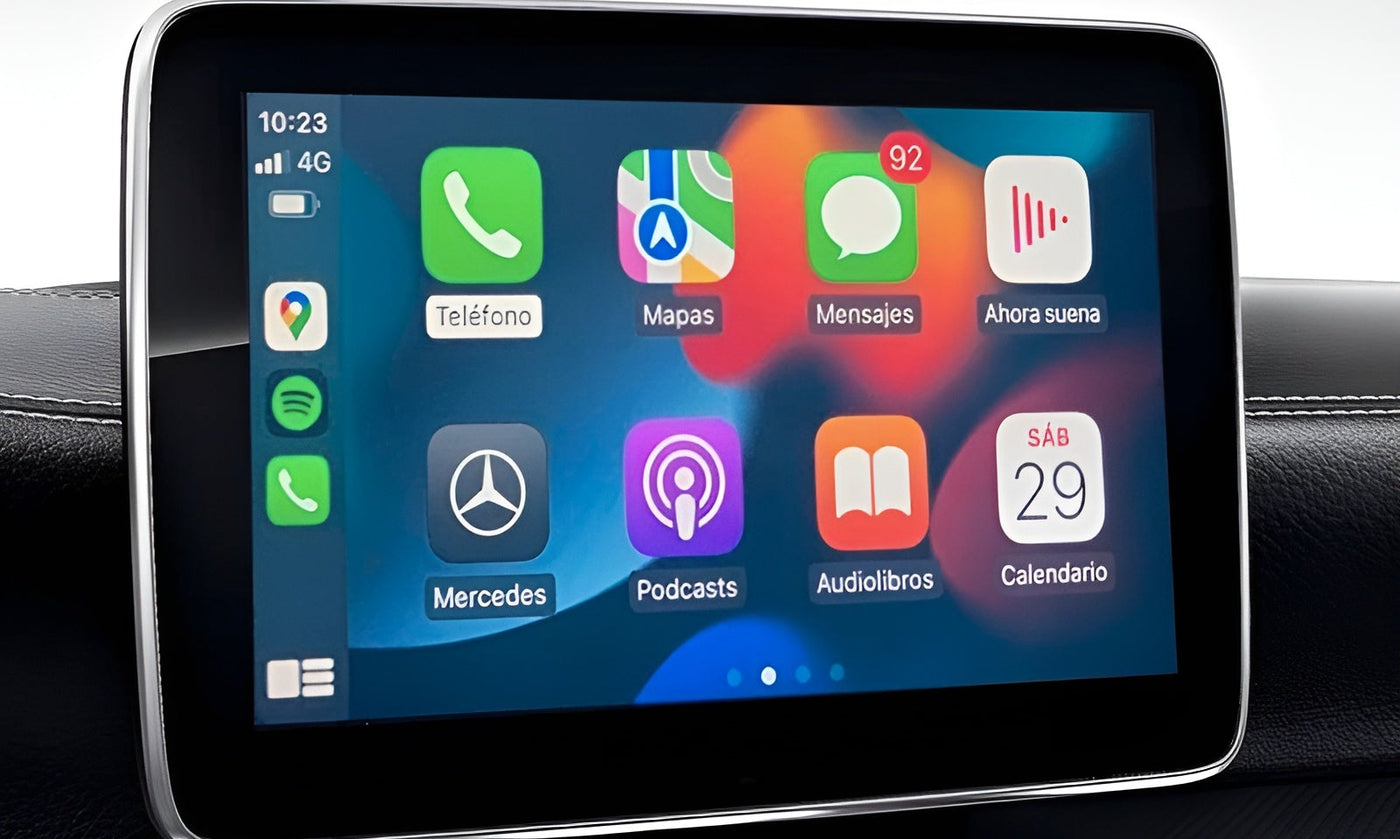
Installing an Apple CarPlay / Android Auto head unit in your E39 is a cost-effective way to upgrade your car’s infotainment without altering its original interior. With CarPlay, you’ll get connected navigation, Spotify, hands-free calls, and voice assistant support — all while keeping your BMW’s iconic driving experience.
Good news: the installation is 100% Plug & Play and can be done at home with basic tools.
Here’s a detailed, step-by-step guide to get your E39 CarPlay-ready.
Tools and Prep
Before you start, gather the following:
-
Phillips screwdriver
-
Plastic trim removal tools or spudger
-
10mm wrench (for disconnecting the battery)
-
Protective cloth
Safety tip: Disconnect the negative battery terminal before working with any electrical components.
Estimated install time: 1–2 hours.
Check Out Our Apple CarPlay Retrofit Kits
Upgrade your BMW with our Apple CarPlay retrofit kits and bring your dashboard into the modern era.
Enjoy seamless navigation, music streaming, and hands-free calls directly on your factory screen, all while keeping your steering wheel controls, factory audio, and backup camera fully functional.
Plug & Play installation makes it quick and easy — transform your BMW today without losing its original charm.

Step 1: Remove the Factory Head Unit
1️⃣ Remove the decorative trim

Start by removing the trim surrounding the factory head unit and climate controls.
Carefully insert a plastic trim tool between the dashboard and the trim, and gently pry it off.
Take your time to avoid scratching wood or plastic surfaces.
2️⃣ Unscrew the factory head unit

Once the trim is removed, the mounting screws are accessible.
Use a Phillips screwdriver to remove the screws on both sides of the radio.
3️⃣ Pull out the radio

Gently pull the head unit toward you.
At the back, disconnect:
- Main power connector
- Radio antenna
The factory unit is now removed.
Step 2: Remove Surrounding Components
Some additional components must be removed for a clean CarPlay installation.
Remove the climate control panel

The climate panel can be gently unclipped. On some models, it can be moved downward toward the storage compartment.
This is necessary if your new head unit takes up additional space.
Remove the air vents

Use a plastic trim tool to release the mounting clips.
Pull the vents straight out, evenly, to avoid damage.
Remove the mounting frame

Unscrew the four screws holding the factory radio frame.
Once removed, the dash is ready to accept your CarPlay head unit.
Step 3: Install the CarPlay / Android Auto Head Unit

This is the simplest part. The system is Plug & Play, requiring no cutting or splicing.
Connect:
- BMW factory harness to the new head unit’s connector
- Power cable via the CANBUS decoder module
- Radio antenna
Everything plugs into the original connections — no coding required.
Step 4: Wiring Layout

Power cable
Connect the short power cable to the provided CANBUS module.
This module ensures compatibility with your steering wheel controls and communicates with the car’s system.
USB cable
Route the USB cable to an accessible location:
- Glove box
- Center console
- Storage compartment
This allows a wired connection for your phone if needed.
GPS and WiFi antennas
Place the antennas in a clear area, ideally in the top corners of the dash, behind the trim.
Avoid metal surfaces that could interfere with signals.
RCA cables (if using backup camera or external amp)
If your E39 has:
- A factory backup camera
- An external amplifier
Connect the RCA cables to the appropriate audio/video outputs.
Step 5: Test Before Reassembly
Before putting everything back together:
-
Reconnect the battery
-
Turn on the ignition
-
Check that the head unit powers on correctly
-
Test the audio output
-
Verify steering wheel controls work
-
Connect your phone via CarPlay
Once everything works, proceed with reassembly.
Step 6: Reassemble the Dashboard
Reverse the removal steps:
-
Reinstall the radio mounting frame
-
Reclip the air vents
-
Reinstall the climate panel
-
Screw in the head unit
-
Replace the trim
Take your time to ensure all pieces fit perfectly.
Step 7: Configure CarPlay / Android Auto
After installation:
-
Enable Bluetooth on your phone
-
Connect your iPhone or Android device
-
Authorize CarPlay or Android Auto
Depending on your unit, you can use CarPlay wirelessly or via USB.
You’ll now have access to:
-
Google Maps
-
Waze
-
Spotify
-
Phone calls and messages
-
Voice assistant (Siri or Google Assistant)
Common Issues and Solutions
No sound?
Check that the AUX input is activated if needed.
Steering wheel controls not working?
Verify connection to the CANBUS module.
Weak GPS signal?
Move the GPS antenna to a higher or more open location.
Final Result: A Modernized E39
With a CarPlay head unit installed, your BMW E39 becomes fully connected while keeping its original charm. You now enjoy:
-
Connected GPS navigation
-
Music streaming
-
Hands-free calls
-
A modern, responsive touchscreen interface
This is one of the most effective upgrades for keeping your E39 functional and enjoyable in today’s digital world.
Want to go further?
Check out our BMW E39 accessories for backup cameras, external microphones, and additional integration options to complete your CarPlay setup.