



The essential takeaway: Disabling CarPlay effectively requires removing the specific vehicle from iPhone settings via "Forget This Car" or using Screen Time restrictions for a complete block.
If this doesn't work, try enabling your Wi-fi connection on your phone: Wireless CarPlay uses a hidden WiFi link. Turning WiFi on forces your phone to disconnect, which breaks CarPlay.
Does the automatic connection of your vehicle create unwanted distractions or privacy concerns while driving? Learning how to turn off CarPlay allows you to regain control over your infotainment system through specific configuration changes. From the "Forget This Car" option to Screen Time restrictions, this guide details the exact steps to disconnect your iPhone.
- The Direct Methods to Disconnect CarPlay on Your iPhone
- Advanced Options for Controlling CarPlay Access
- Managing CarPlay From Your Vehicle and For Multiple Users
The Direct Methods to Disconnect CarPlay on Your iPhone
Forgetting a Specific Vehicle in Your Settings
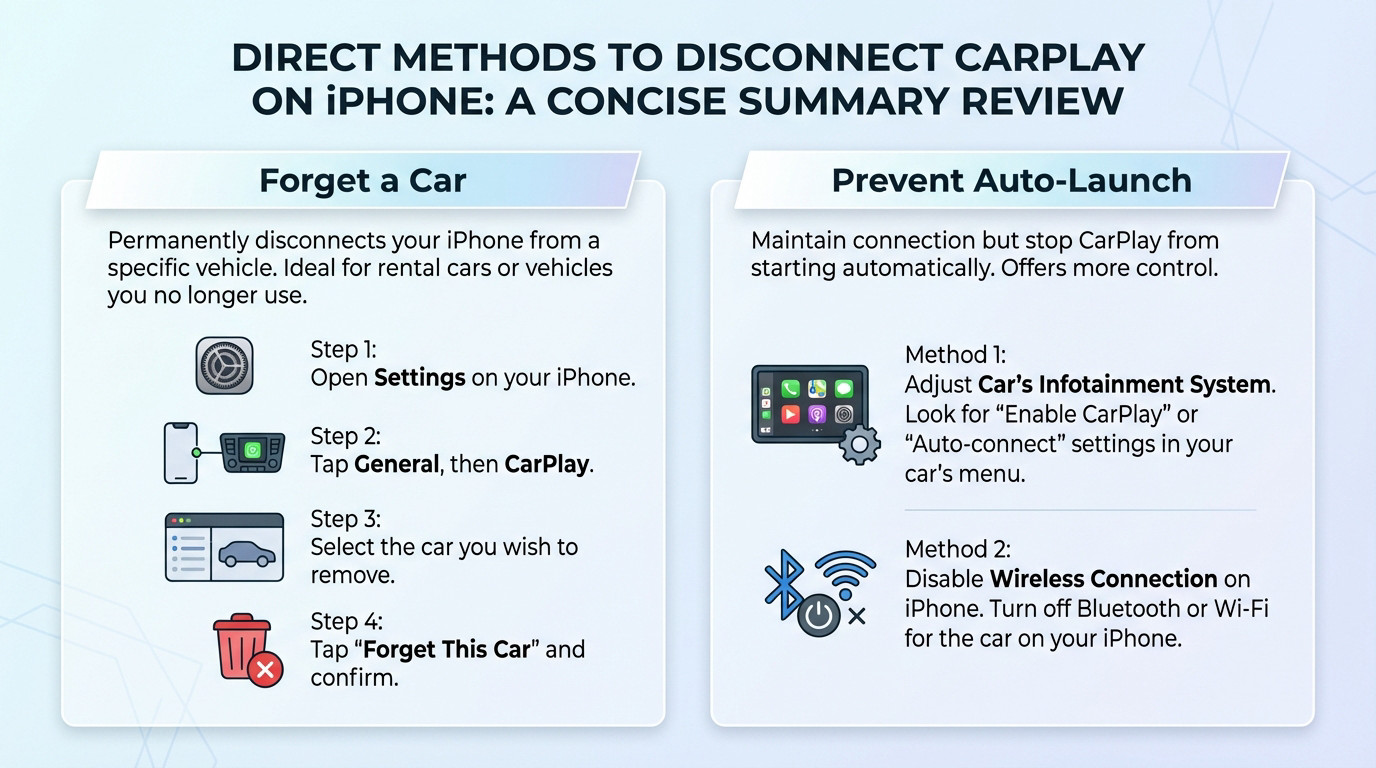
The most radical way to turn off CarPlay is to wipe the vehicle from the iPhone's memory. One observes that this remains the safest choice for rental cars to avoid leaving personal data behind. It effectively severs the link for vehicles you no longer drive. The primary action required here is Forget This Car.
This specific option is located within the main settings of the iPhone. It sits under a dedicated CarPlay menu that displays every vehicle previously synced with the device. Accessing this list allows for precise management of connections.
- Open Settings on your iPhone.
- Tap on General, then CarPlay.
- Select the car you wish to remove.
- Tap 'Forget This Car' and confirm your choice.
Preventing CarPlay from Starting Automatically
Sometimes, one does not wish to delete the car, but simply stop CarPlay from launching. It becomes a question of user control rather than permanent disconnection. This preserves the pairing for future use without the intrusion.
This functionality often depends on the car's infotainment system itself. The driver must search the vehicle menus for a parameter labeled "Enable CarPlay" or "Auto-connect." Toggling this setting prevents the automatic takeover.
For wireless setups, disabling Bluetooth acts as a barrier. This simple action stops the automatic start sequence immediately.
If this doesn't work, Wireless CarPlay uses a hidden WiFi connection to transfer high-bandwidth data. Your phone may display WiFi as “off” because it is already connected to this private network.
Turning WiFi on forces the phone to disconnect in order to search for other networks, which breaks the CarPlay connection.
Advanced Options for Controlling CarPlay Access
But sometimes, a simple disconnection isn't enough. For those needing stricter control, the iPhone offers powerful tools.
Using Screen Time to Completely Block CarPlay
This is the most radical solution for users investigating how to turn off CarPlay permanently. By utilizing Screen Time, you completely block the application, rendering it inaccessible. This is ideal for parental control or restricting professional devices.
To activate this, navigate to Settings > Screen Time > Content & Privacy Restrictions > Allowed Apps. Simply toggle the switch next to CarPlay to disable the feature instantly.
Comparing the Different Deactivation Methods
Selecting the right method depends on your specific objective. A comparative summary helps to decide quickly.
| Method | Best For | Reversibility |
|---|---|---|
| Forget This Car | Disconnecting from a specific vehicle you no longer use (e.g., rentals). | Simple. Just reconnect via USB or wirelessly. |
| Disable in Car Settings | Keeping the phone paired for calls but launching manually. | Very easy. Toggle setting back on in car menu. |
| Screen Time Restriction | Completely blocking CarPlay on the iPhone for all vehicles. | Involved. Requires navigating back into Screen Time settings. |
Managing CarPlay From Your Vehicle and For Multiple Users
Managing CarPlay isn't limited to your iPhone settings; the system in your car and the presence of other passengers can also complicate things.
Disabling CarPlay From the Car's Infotainment System
Most modern vehicles let you manage connected devices right from the central dashboard. Honestly, this is often the quickest solution for a temporary disconnection. You don't even need to touch your phone.
Dig into your car's Settings, Connectivity, or Phone menus. Take Ford SYNC systems, for example; you can simply delete a phone profile there. This action effectively forces you to turn off CarPlay for that specific device without messing up your iPhone's internal configurations.
Solving Connection Conflicts With Multiple iPhones
We have all seen CarPlay "jump" to the wrong phone or reconnect uninvited. This usually happens because the car desperately tries to connect to the last used device. Sometimes, it defaults to a specific priority unit automatically.
You need a solid plan to stop this annoyance. I recommend setting a primary phone directly in the car's settings if the manufacturer allows it. Otherwise, you have to get manual with the controls.
- Set a primary phone in your vehicle's connection settings if available.
- Manually select the desired phone from the car's screen each time you start a trip.
- Have the person who does not want to connect turn off their iPhone's Bluetooth before the car starts.
Disconnecting CarPlay provides necessary flexibility for various driving situations. Whether users choose to remove a vehicle from settings, utilize Screen Time for complete restriction, or adjust the car's infotainment system, the appropriate method depends on specific requirements. These solutions effectively restore control over how the iPhone interacts with the vehicle.
FAQ
How is CarPlay completely disabled for a specific vehicle?
To permanently stop an iPhone from connecting to a particular car, the "Forget This Car" feature is utilized. The user navigates to the iPhone Settings, selects General, and then taps on CarPlay.
From the list of available cars, selecting the specific vehicle and choosing "Forget This Car" removes the pairing profile, preventing future automatic connections.
How can automatic CarPlay activation be prevented?
Preventing CarPlay from launching automatically often requires adjusting settings within the vehicle's infotainment system rather than the phone. Drivers should check the car's connection or smartphone projection settings for an "auto-connect" or "always enable" toggle to disable.
For wireless connections, turning off Bluetooth or Wi-Fi on the iPhone before starting the car also stops the automatic handshake process.
Is it possible to block CarPlay using Screen Time restrictions?
Yes, Screen Time allows for the complete complete deactivation of the CarPlay application on the iPhone. By accessing Settings and navigating to Screen Time, then Content & Privacy Restrictions, the user can locate "Allowed Apps."
Toggling the switch next to CarPlay to the off position removes the ability for the phone to launch the feature entirely, regardless of the vehicle.
How is a device disconnected via the car's infotainment system?
Most modern vehicles allow for device management directly through the dashboard screen. Accessing the "Phone," "Connectivity," or "Device Manager" menu on the car's display reveals a list of connected devices.
Selecting the active iPhone and choosing to disconnect or disable the session stops CarPlay immediately without needing to unplug the cable or change settings on the phone.
How are conflicts managed when multiple iPhones are in the car?
When multiple paired iPhones are present, the vehicle typically attempts to connect to the last used device. To manage this, users can designate a "primary phone" in the vehicle's settings if the manufacturer offers this option.
Alternatively, manually selecting the intended device from the car's display upon startup or temporarily disabling Bluetooth on the secondary iPhone ensures the correct device connects.